macOS · File manager
The familiar feel of Windows Explorer, on your Mac.
Explorer for Mac is a native macOS file manager for people who feel at home in Windows Explorer. Browse and manage your files with a persistent folder tree, tabs, and familiar workflows.
- Persistent folder tree, tabs, and Favorites — the navigation structure Windows users expect, always one click away
- Cut, copy, paste, and rename — familiar file actions, with Mac-friendly shortcuts
- Undo and Redo for renames, moves, deletes, and copies — ⌘Z to take it back, ⌘⇧Z or ⌘Y to redo
- Editable address bar with typed paths, history, and drag-and-drop
- Folder sizes right in the Details view — visible at a glance, sortable like any column
- Map network drives — NAS and SMB shares stay one click away, like drive letters
- File safety first — Trash by default · zero telemetry · no account
Built for Windows muscle memory
The essentials you miss from File Explorer — a persistent folder tree, tabs, and familiar file workflows.
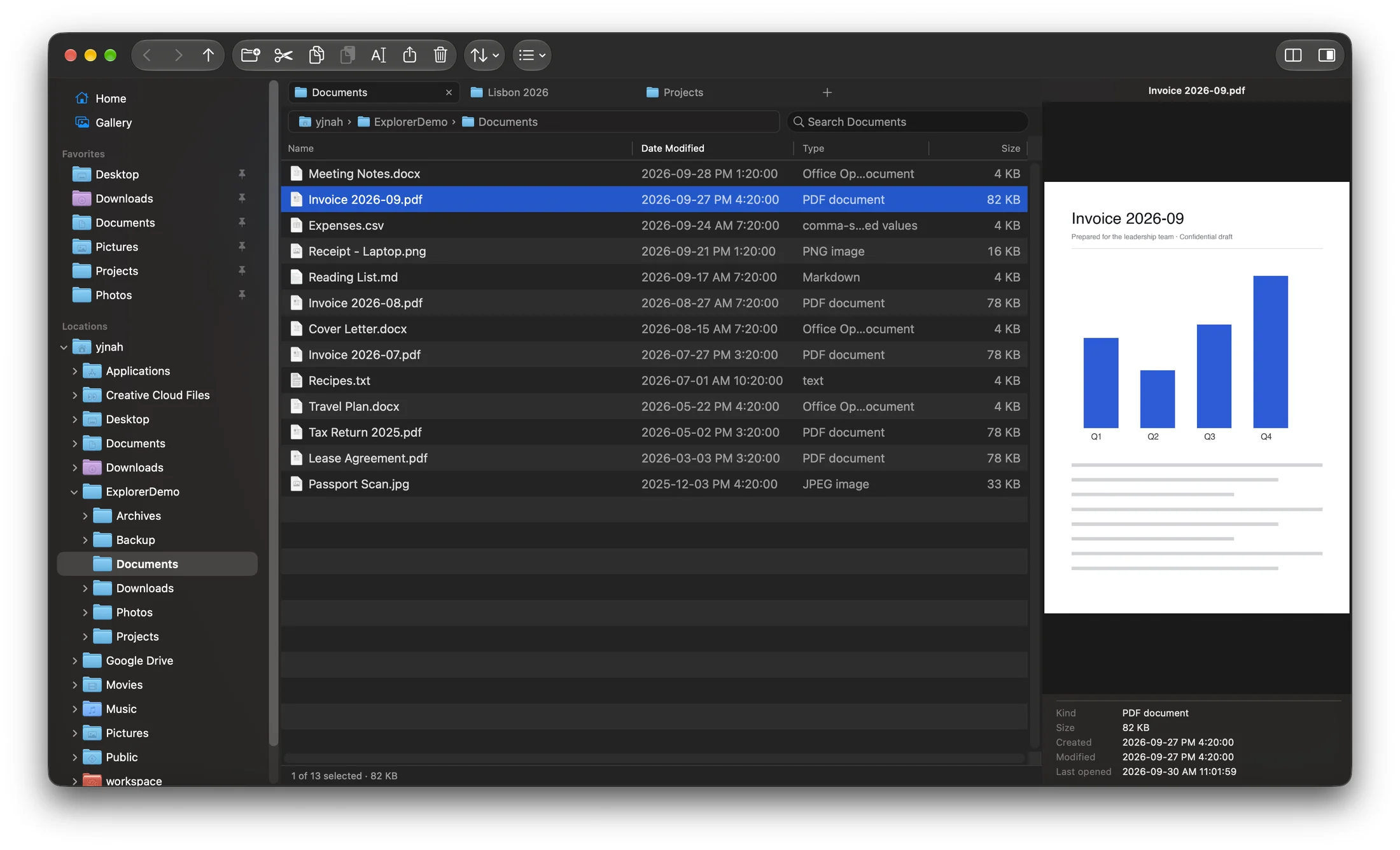
Folder tree & tabs
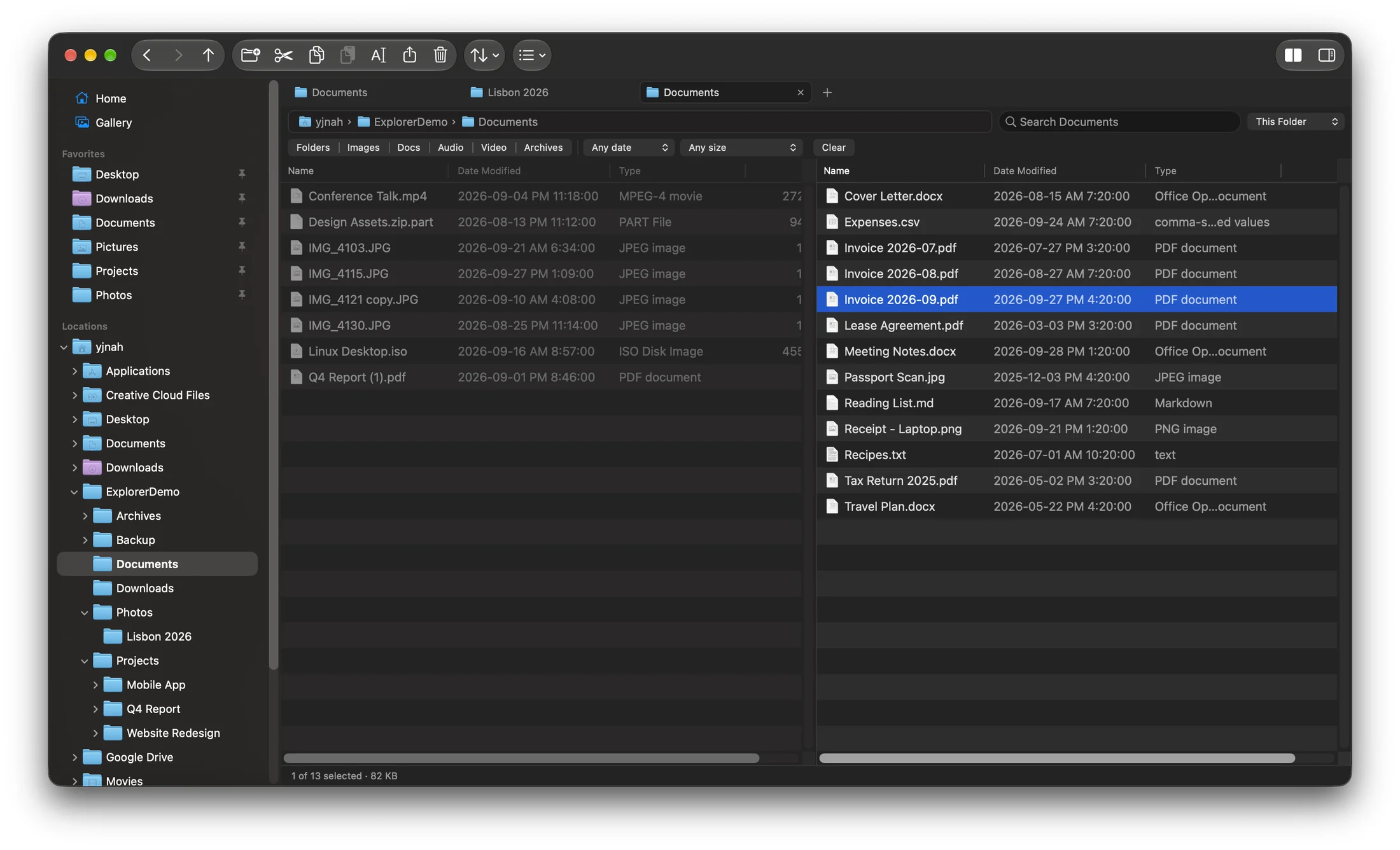
A persistent tree on the left and tabs across the top, plus Favorites and an editable address bar. Drag a file onto another tab — hover to spring it open, then drop — just like Windows 11.
Familiar actions, Mac shortcuts
Cut, copy, and paste with ⌘X / ⌘C / ⌘V, rename with ⌘R, and jump to a typed path with ⌘L. Files stay selected after you paste them, and type-ahead and arrow keys behave the way you expect.
Undo everyday file operations
Renames, moves, deletes, and copies are all undoable — ⌘Z to take it back, ⌘⇧Z or ⌘Y to redo. Deletes go to the Trash, and Restore puts items back where they came from.
Views that remember
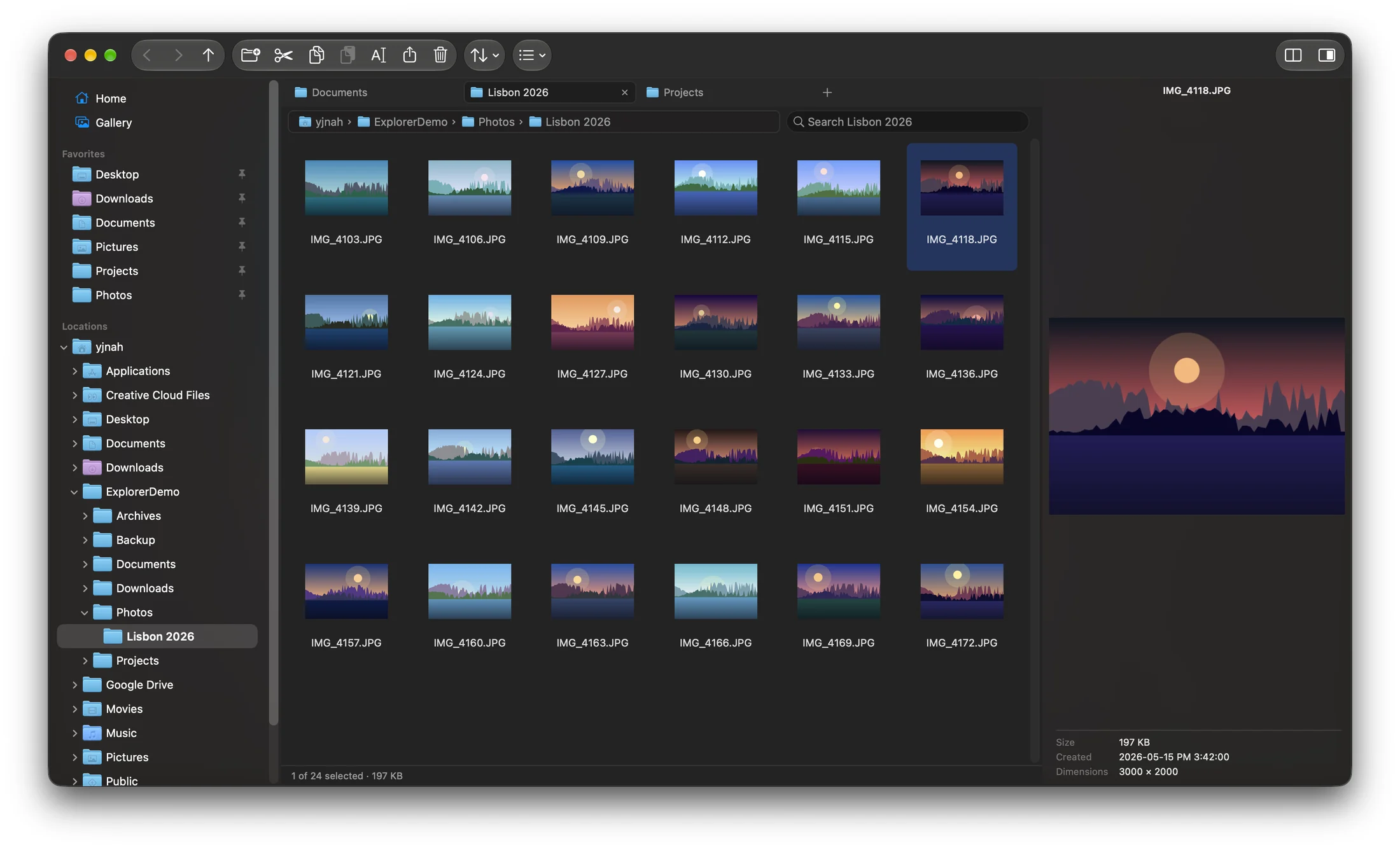
Details, List, four icon sizes, and a photo Gallery. Each folder keeps its own view, like Windows, and a Compact View toggle packs more rows on screen.
File previews and details
A preview pane shows images, PDFs, and documents alongside key file details, including size, dates, image dimensions, and camera metadata.
Network drives
NAS and SMB shares you connect to are remembered, like mapped drives on Windows, and reconnect with one click from the sidebar.
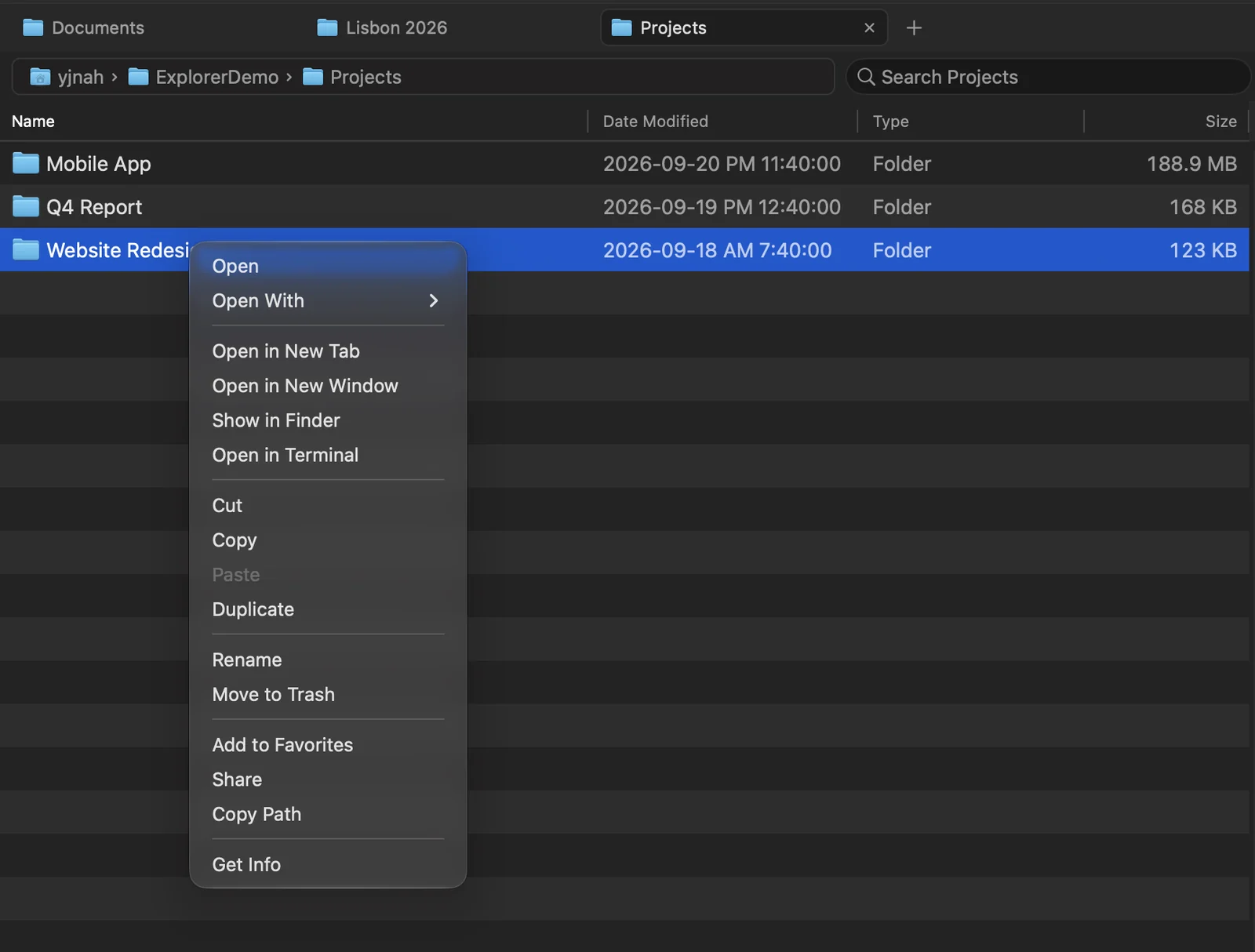
Right-click, like you're used to
Open in a new tab, cut, copy, duplicate, and rename — plus Copy Path, Open in Terminal (with the terminal app you choose), and New Text Document on the folder background. The context menu works the way your muscle memory expects.
Explorer Pro
Advanced tools for bigger file tasks. One purchase, no subscription. Everything above stays free — forever. Pro adds more tools.
Perpetual license · no subscription · verified offline on your Mac, no account
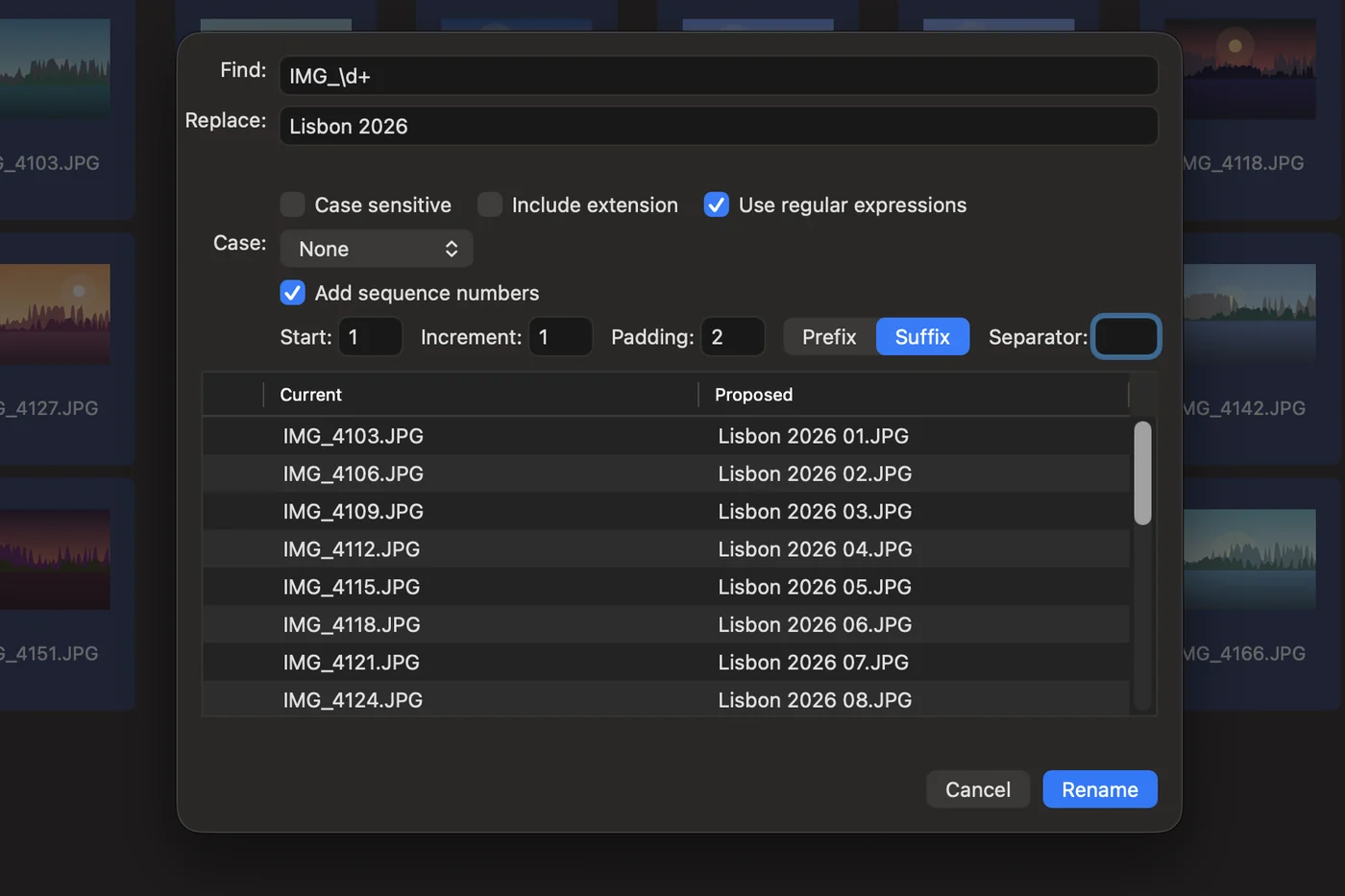
Batch rename
Rename hundreds of files at once — find & replace, regular expressions, numbering, and case changes — with a live preview and a single undo.
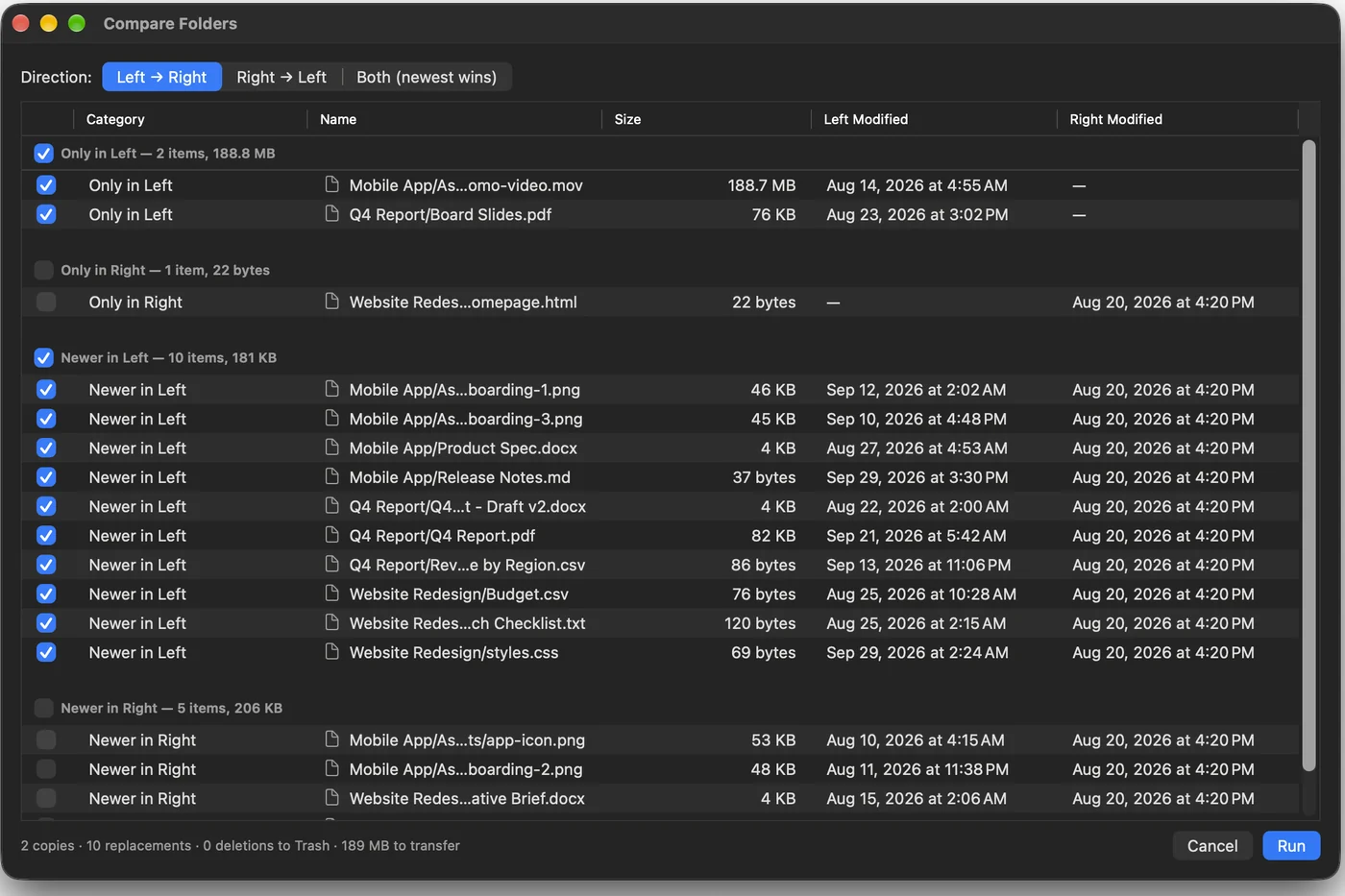
Compare & sync folders
See exactly what differs between two folders, pick a direction, and review every copy and replacement before anything changes.
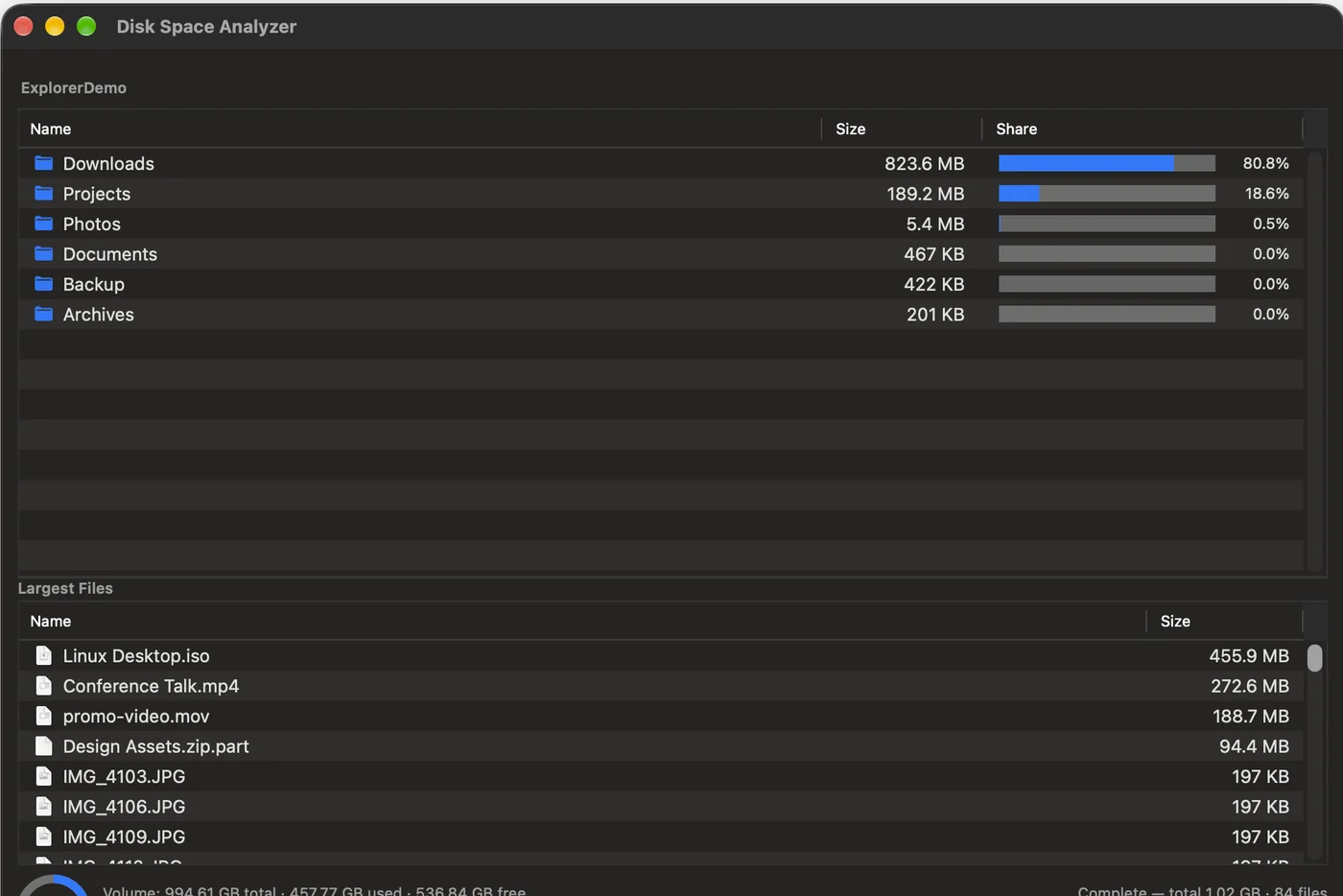
Disk usage analyzer
See what’s taking up disk space, folder by folder, with the largest files listed underneath — and clean up from the same window.
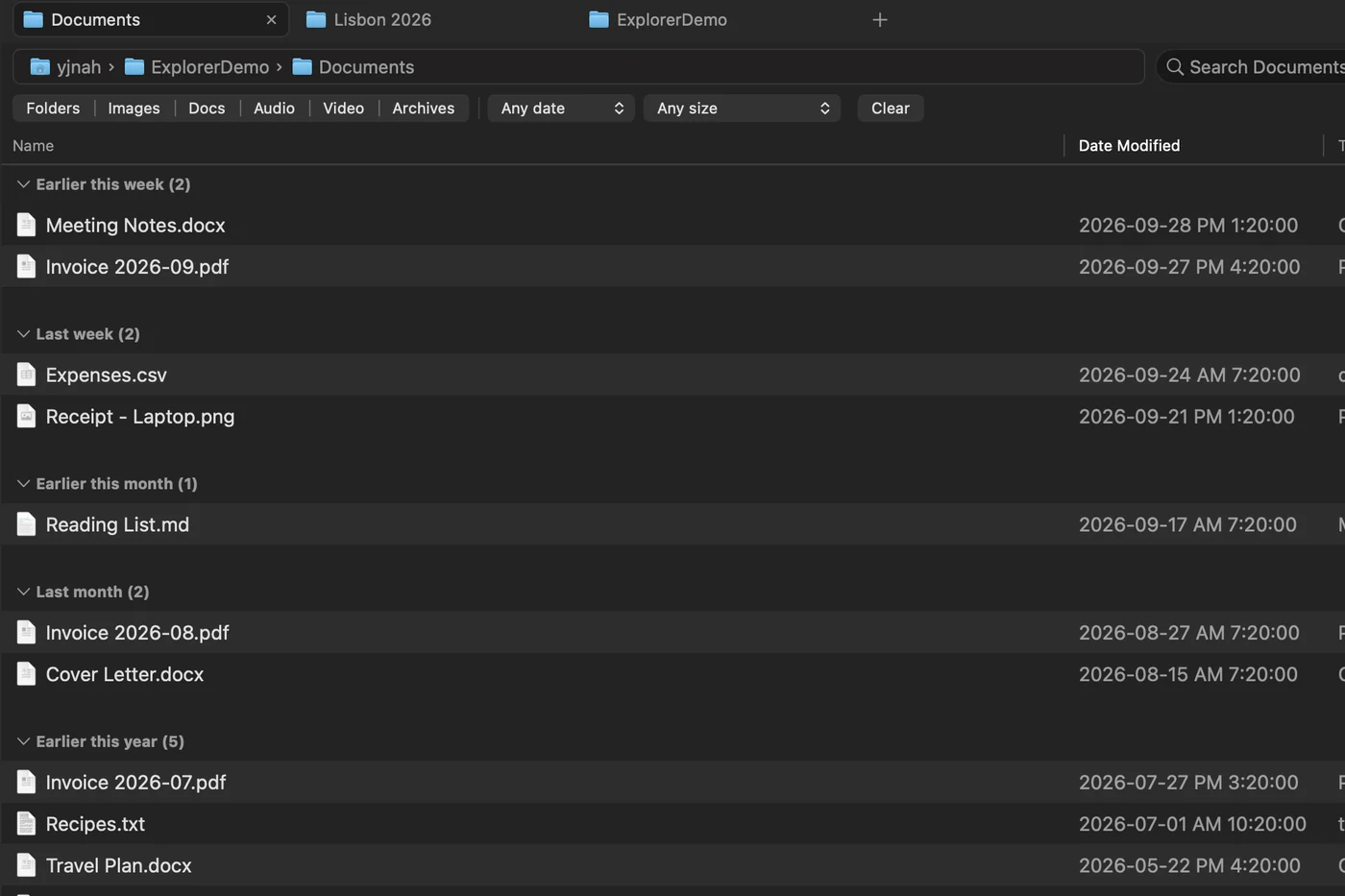
Group files the Windows way
Group the Details view by date, type, size, or name — Earlier this week, Last month, and the other groups you know from Windows.
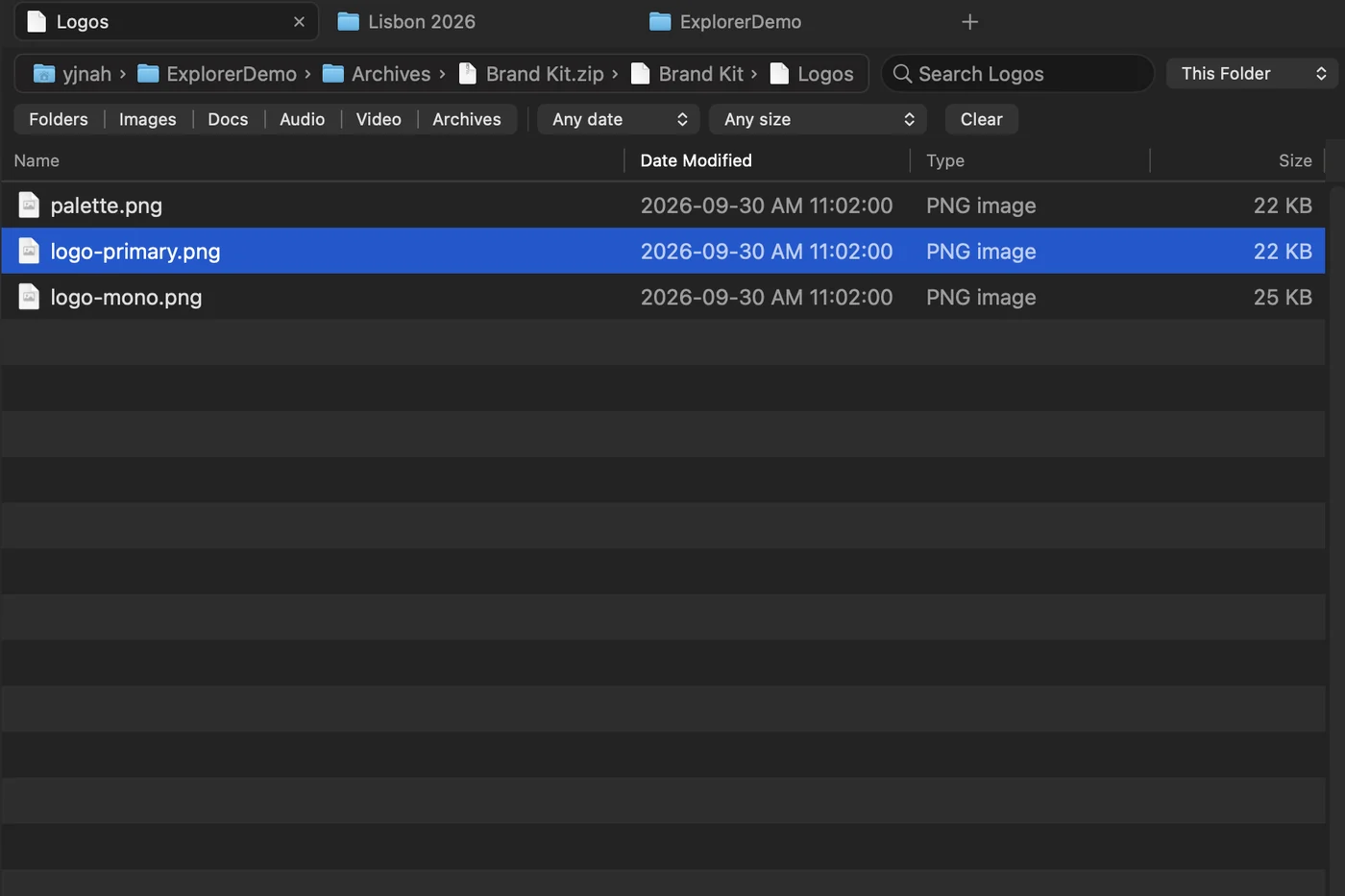
Browse and create ZIP archives
Open a .zip without extracting it, preview what's inside, and copy files out. Compress a selection, optionally with a password.
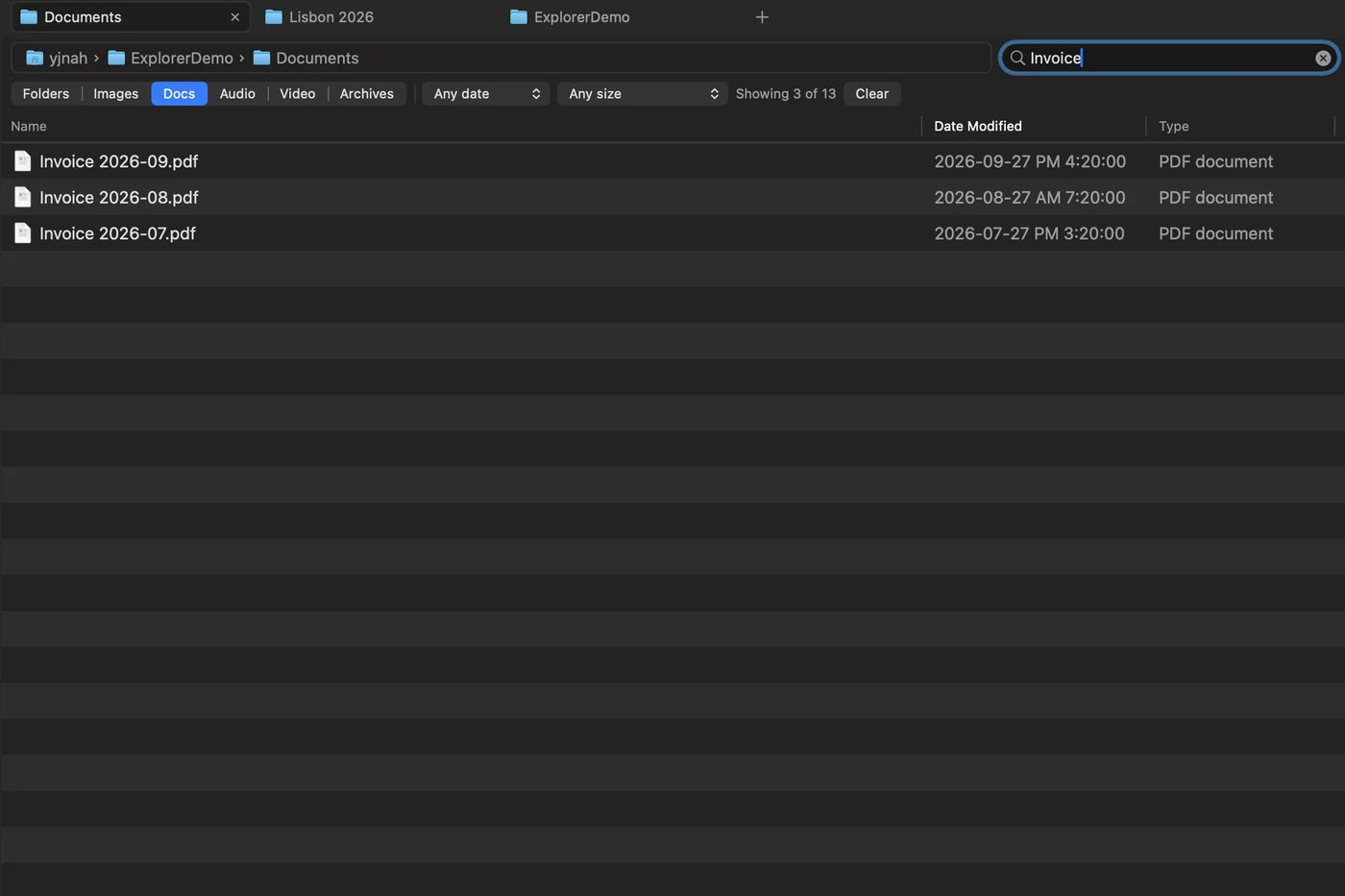
Find files faster with filters
Filter the current folder by file type, date, or size, and combine filters with a filename search. Here, the filters show 3 of 13 items: documents matching “Invoice”.
Also in Pro: search all subfolders from the address bar (⇧⌘F) and save searches you run often · find duplicate files by content · a Stash Shelf to park files while you browse to their destination · named tab sessions to reopen a set of tabs later.
Your purchase comes with a license file — double-click it once and Pro unlocks. Explorer never contacts a server to check it, and the free app keeps every feature it has today.
How to install
Download
Grab the DMG with the download button above and open it.
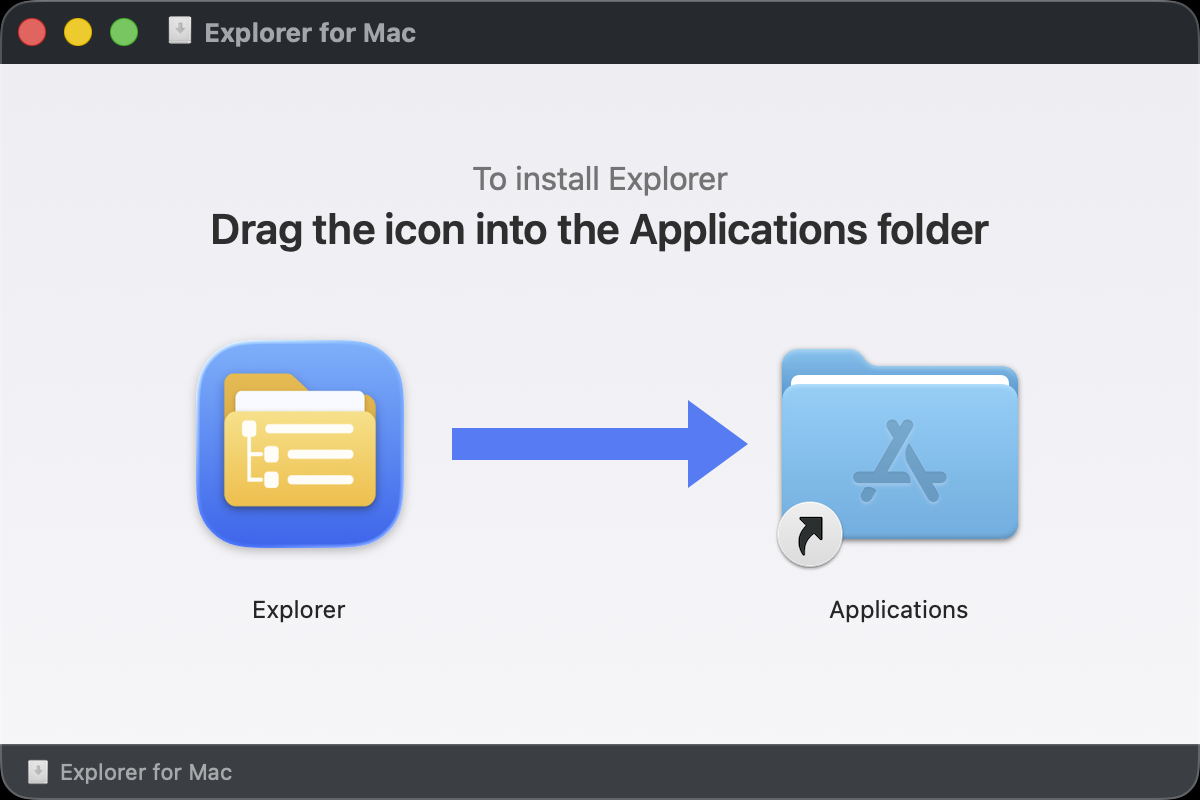
Drag to Applications
Drag the Explorer icon into the Applications folder — that's the whole install.
Allow folder access
macOS may ask for permission when you first open protected folders such as Desktop, Documents, and Downloads. You can change these permissions anytime in System Settings ▸ Privacy & Security.

Privacy. Explorer for Mac collects no file names, paths, or usage data. No telemetry or online license checks. Automatic update checks can be turned off in Settings. The app is notarized by Apple. Found a problem? Use Help ▸ Report a Bug inside the app, or write to support@yjlab.io.